
AI Email Writer for Replying to Emails: Craft Perfect Responses in Seconds
Replying is where email really eats your day — professionals spend a large chunk of the workweek in their inbox, and much of that is composing responses rather than reading them. An AI email writer turns an incoming message into a polished, ready-to-send reply in seconds: you paste the email, tell it the gist and tone, and it drafts a professional response for you to review. That’s exactly the «how do I word this?» friction a dedicated AI email reply generator is built to collapse into one click.
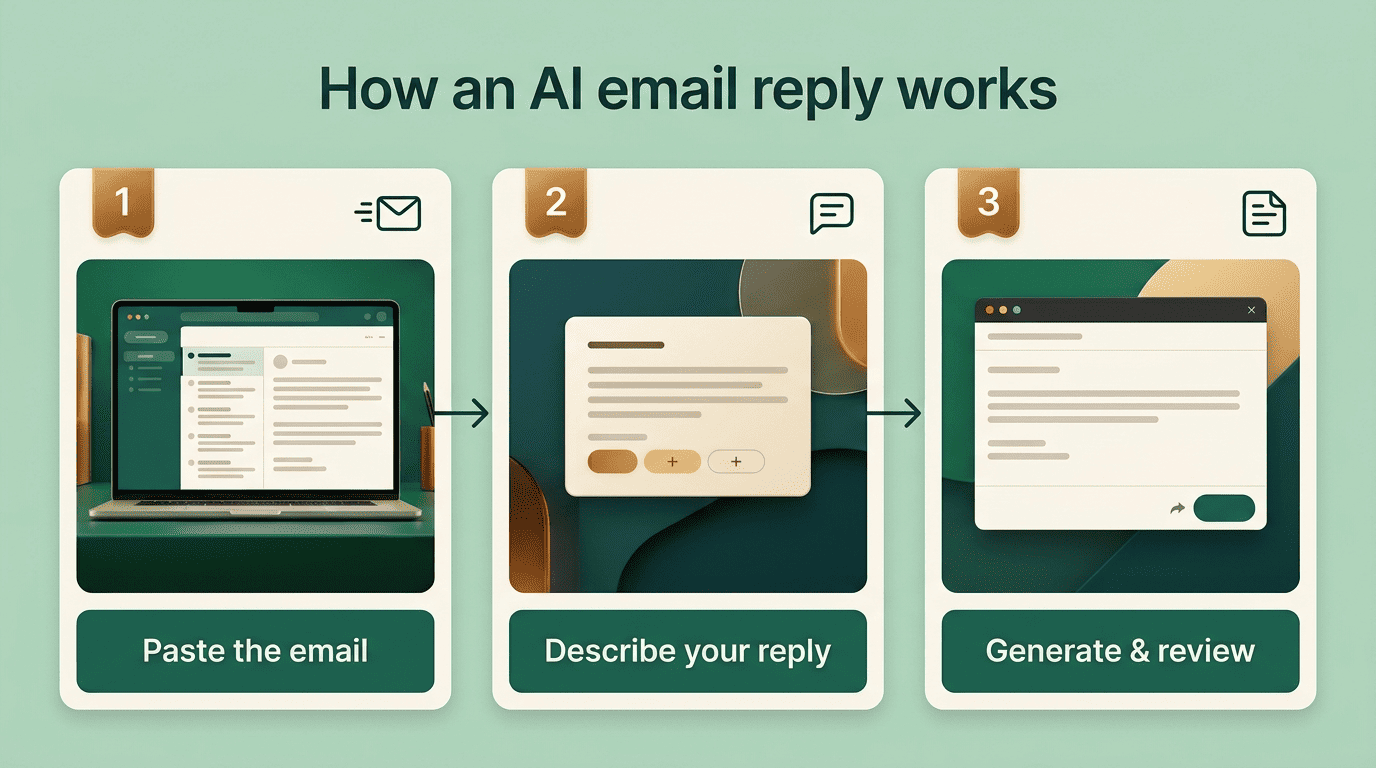
How an AI Email Writer Replies to Your Emails
Nearly every AI email reply generator follows the same pattern, and understanding it makes the output far more predictable. The AI reads the original email as context, which is why pasting the full message — not a summary — produces the most accurate reply.
The three-step reply flow
Mailmeteor and QuillBot both describe the same three-step flow:
- Paste the email you received.
- Describe the main point or shorthand of your reply.
- Generate — then read the draft before sending.
HyperWrite asks for the received email plus a short «shorthand response» instead of a full draft. In every version of the flow, the original email context is what separates a real AI email reply generator from a generic AI email writing tool that just produces text with no reference to what was actually asked.
What powers the reply
Most tools run on a large language model. HyperWrite uses GPT-4 and ChatGPT; Mailmeteor routes securely through OpenAI’s ChatGPT to generate its drafts. That matters for privacy as much as quality — OpenAI’s privacy policy explains how submitted text may be processed and retained, which is worth a quick read before pasting a sensitive thread. Gmail’s own Smart Reply and Smart Compose features popularized inline AI suggestions years ago and set the baseline expectation for one-click responses that today’s dedicated AI email assistants build on.
Choosing the Right Tone for a Reply
Tone is the single biggest reason an otherwise well-written reply falls flat — a technically correct answer in the wrong register reads as cold, pushy, or careless.
Tone options you’ll actually use
AIFreeBox offers 22 reply styles, including Formal, Professional, Friendly, Detailed, and Apologetic. Planable offers 10 tone options — among them Convincing, Witty, and Enthusiastic — and can generate 1, 3, or 5 variations of the same reply to compare side by side. WriteMail.ai layers a separate mood setting on top of tone, with choices like Empathetic, Enthusiastic, and Urgent. Match the tone to the relationship, not just the topic:
- Formal for a first reply to a client or someone senior you haven’t corresponded with before.
- Friendly for a colleague or a contact you already know well.
- Apologetic when you’re declining a request or fixing a mistake.
- Detailed for technical or support replies where the reader needs every step spelled out.
| Tool | Tone/style options | Response variations |
|---|---|---|
| AIFreeBox | 22 styles (Formal, Friendly, Apologetic, etc.) | Single draft |
| Planable | 10 styles (Convincing, Witty, Enthusiastic, etc.) | 1, 3, or 5 per request |
| WriteMail.ai | 4 tones + separate mood layer | Single draft |
| HyperWrite | Style adapts to your writing over time | Single draft |
Generating variations
Producing several versions of the same reply — Planable’s 1/3/5 option is the clearest example — lets you pick the phrasing that fits before committing, which is especially useful for sensitive or high-stakes messages where a single AI-generated draft might miss the mark.
Common Reply Scenarios AI Handles Well
The strongest use cases share one trait: they’re repetitive and context-heavy, which is exactly where an AI email assistant saves the most time.
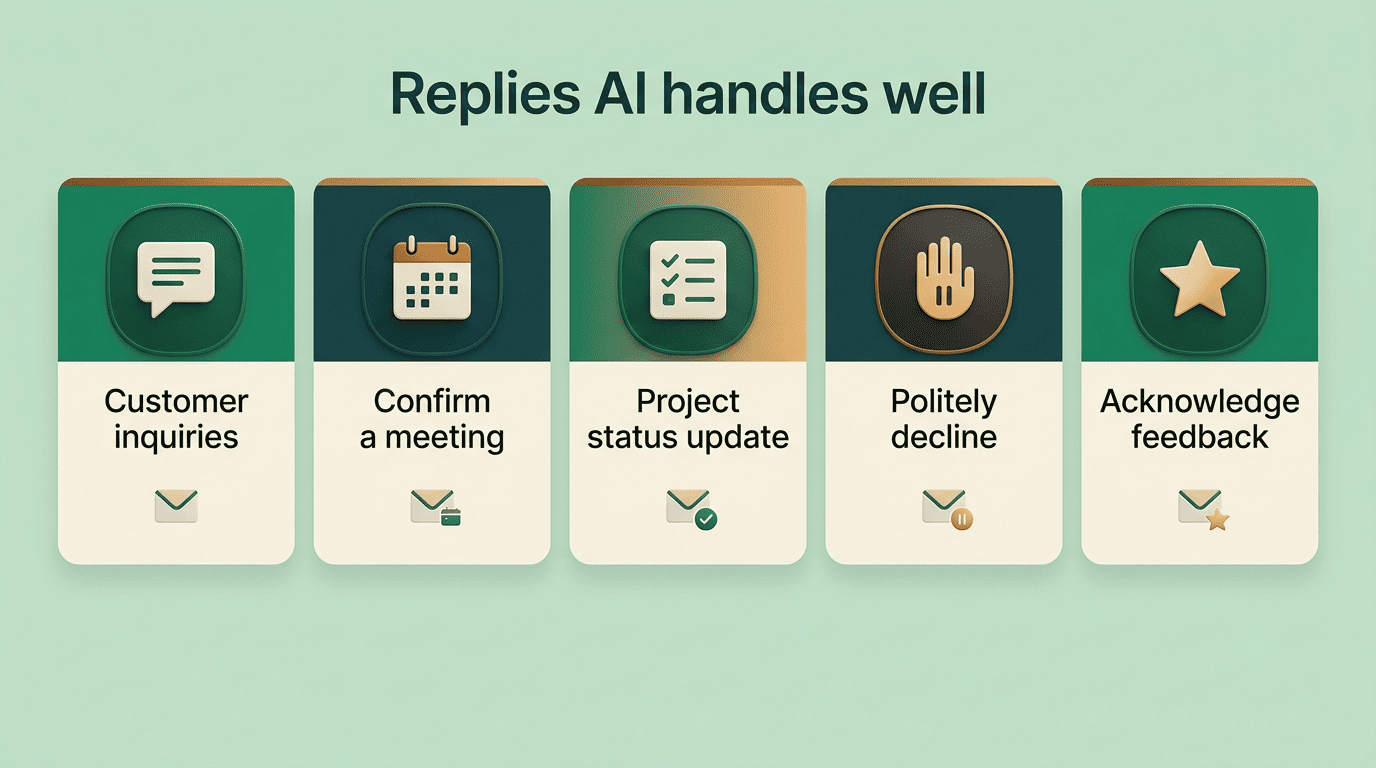
Answering customer inquiries. The question is usually predictable even when the wording isn’t, so the AI can reuse the same underlying answer while adjusting phrasing to match the original message.
Confirming a meeting or schedule. These replies are short, factual, and low-risk, making them ideal for a one-click AI draft with minimal editing.
Sending a project status update. The AI turns a list of bullet points or a rough note into a coherent paragraph a client or manager can skim in seconds.
Politely declining or rescheduling. Getting the tone right here matters more than the words themselves, which is precisely the kind of task a tone-aware AI email writer is built for.
Acknowledging feedback or reviews. A quick, warm response signals that the message was actually read, and an AI draft removes the excuse to leave it unanswered.
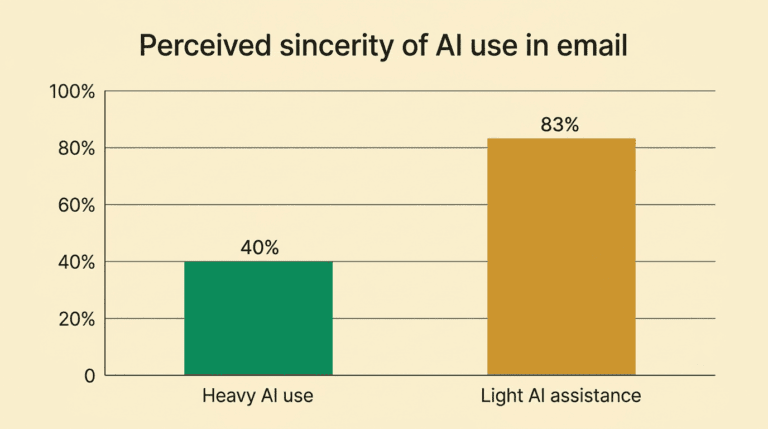
Replies also often become threads rather than one-off exchanges. WriteMail.ai notes that a well-timed follow-up email can lift response rates by up to 250% compared with a single message left unanswered. Non-native speakers lean on reply generators for a different reason: AIFreeBox supports 33 languages and WriteMail supports 30+, which makes a reply sound natural in a second language instead of stilted or overly literal.
Making an AI Reply Sound Like You
A reply that reads like a template gets ignored. Readers absorb only about 20% of an email’s content on average, according to WriteMail.ai’s own research, which means clarity and a human touch carry more weight than clever phrasing.
Personalization and editing
HyperWrite adapts to your writing style over time when used as a Chrome extension inside Gmail or Outlook, so replies gradually sound less generic the more you use it. Whatever tool you use, add one specific detail before sending — a name, a date, or a direct reference to something in their message. That single edit is usually enough to turn a competent AI draft into something that reads as genuinely yours.
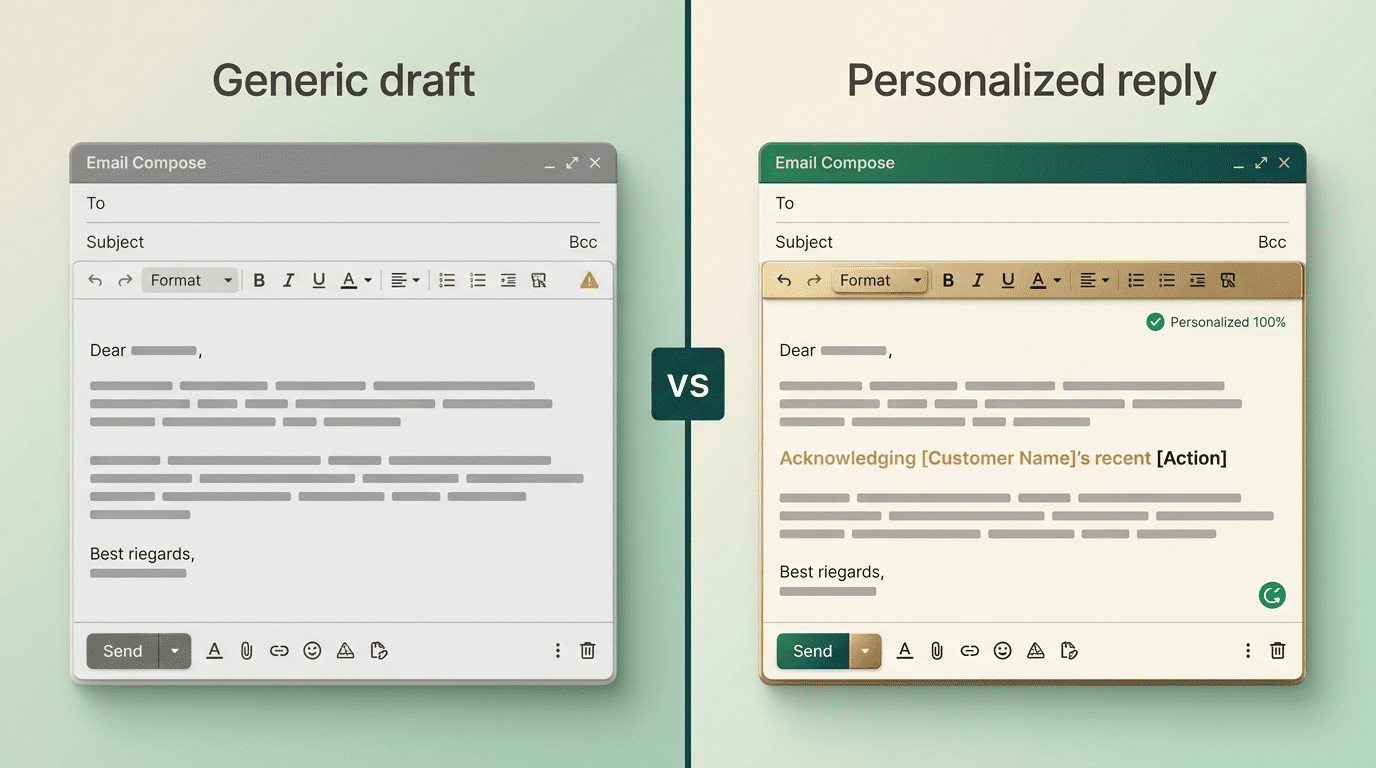
Microsoft’s documentation for Copilot in Outlook walks through a similar draft-then-personalize workflow, which is a useful reference if your inbox already lives in Outlook rather than Gmail.
The average professional spends 28% of the work day reading and answering email.
Matt Plummer, Harvard Business Review
Always review before you hit send
Every serious tool says the same thing, in one form or another: AI drafts, you approve. AIFreeBox and Mailmeteor both warn that generated replies can feel generic or miss nuance and need to be checked for factual accuracy before sending. Treat the output as a strong first draft, not a final answer — a habit that matters even more once you’re relying on an AI email reply generator for daily inbox work rather than the occasional message.

Here’s a simple checklist to run through before sending any AI-drafted reply:
- Reread the original email once more to confirm the draft actually answers it.
- Check names, dates, prices, and any other specific facts for accuracy.
- Pick or adjust the tone so it fits the relationship, not just the topic.
- Add one personal detail the AI couldn’t have known.
- Cut anything that sounds generic or template-like.
- Read the reply out loud once — if it doesn’t sound like you, edit it until it does.
- Send only after that final read-through, not straight off the first generation.
Free vs Paid AI Email Reply Generators
Cost and privacy are usually the two deciding factors once tone and integration options look similar across tools.
What «free» gets you
Many reply generators are free with no sign-up required. QuillBot, Planable, AIFreeBox, and Mailmeteor’s free tier all let you generate replies without creating an account. Paid tiers mainly add volume, integrations, and deeper personalization: WriteMail.ai is free for 5 emails a month, then starts at $5 a year for more; HyperWrite runs $19.99 a month for Premium or $44.99 a month for Ultra.
| Tool | Free tier | Paid pricing |
|---|---|---|
| QuillBot | Yes, no sign-up | Included in QuillBot Premium |
| Planable | Yes, no sign-up | Bundled with Planable plans |
| AIFreeBox | Yes, no sign-up, unlimited stated | — |
| Mailmeteor | Yes, free tier | Paid plans for higher volume |
| WriteMail.ai | 5 emails/month | From $5/year |
| HyperWrite | Limited | $19.99/mo (Premium), $44.99/mo (Ultra) |
Privacy and safety
If you’re pasting real emails into any of these tools, it’s worth knowing where that text goes. Mailmeteor processes replies through OpenAI’s ChatGPT, and OpenAI’s privacy policy notes that submitted content may be retained for a limited period — commonly cited as up to 30 days — to monitor for abuse before it’s deleted. AIFreeBox states that it stores no private data. As a rule, avoid pasting the following into any AI email writer:
- Passwords or login credentials.
- Financial details such as account or card numbers.
- Confidential client or contract information.
- Anything covered by an NDA or internal-only policy.
Check the specific tool’s privacy policy before you rely on it for sensitive threads. Gmail’s own support documentation on Smart Reply is a useful baseline for how a major provider already handles AI-suggested responses inside your inbox today.
FAQ
Related guides: follow-up emails and getting the tone right.