
AI Email Writer for Gmail and Outlook
If you live in Gmail or Outlook, the right AI email writer should meet you there — not in a separate tab. According to Google’s own developer documentation, third-party tools reach your inbox through scoped OAuth permissions rather than a full account handover, which is what makes a browser extension or add-in possible in the first place. The short version: it connects through a browser extension or add-in, drafts replies in your voice, and — unlike the built-in options baked into each provider — a good third-party AI email writing tool covers both inboxes at once.

This article breaks down how that connection actually works, where Gmail’s and Outlook’s native AI tools fall short, how to hand over access without over-sharing your data, and how to pick a tool that matches your setup.
How an AI Email Writer Plugs Into Your Inbox
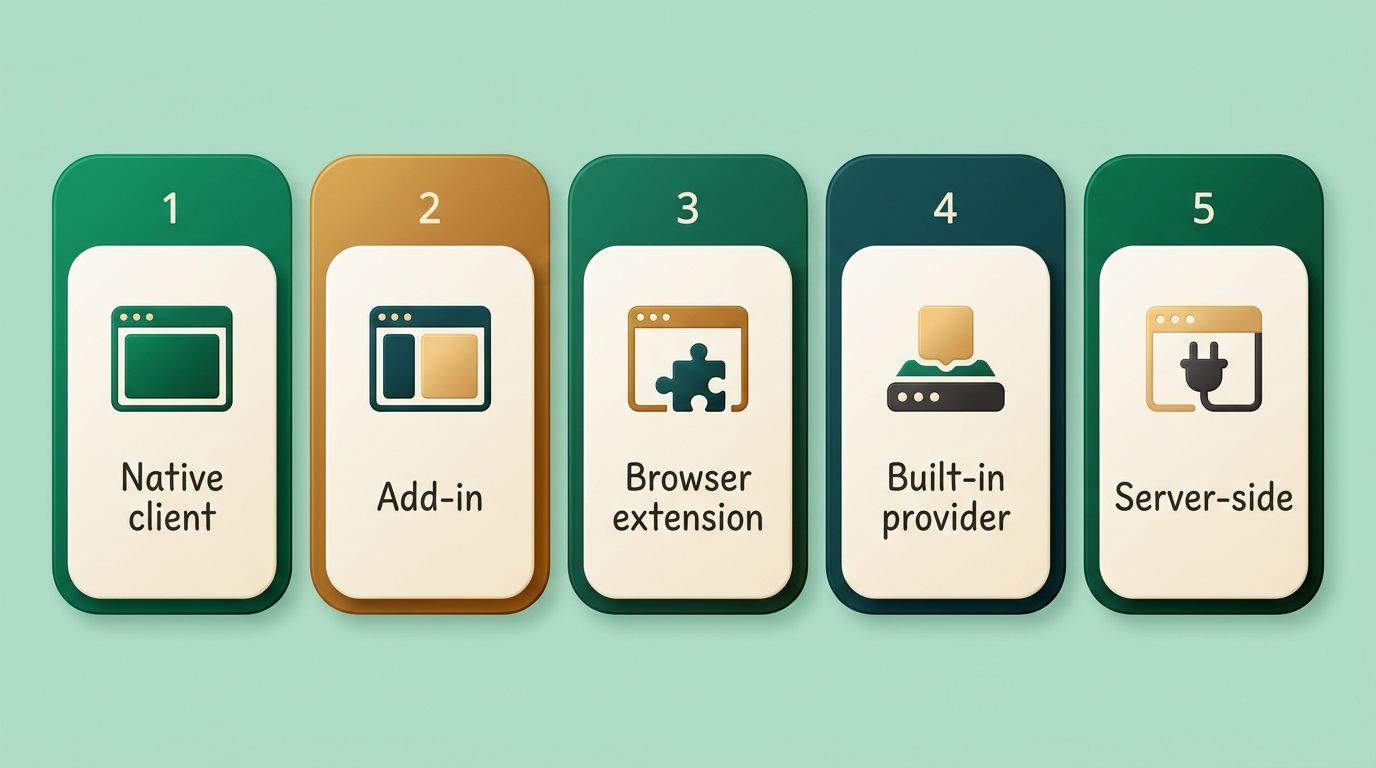
There isn’t one way to connect an AI email writer to your mail — there are four or five, and they trade off convenience against how deeply the tool integrates:
- Native client — replaces your inbox entirely with an AI-first interface.
- Add-in — distributed through Microsoft AppSource, drops a panel inside Outlook without touching the underlying mail client.
- Browser extension — overlays Gmail or Outlook in Chrome or Edge, nothing to migrate.
- Built-in provider tool — ships inside the platform itself, like Gemini in Gmail or Copilot in Outlook.
- Server-side connection — skips the interface altogether and works against your mailbox via API.
Vendors that support one-click OAuth connections tend to advertise it: Fyxer, for instance, markets a roughly 30-second Google-verified and Microsoft-verified setup, meaning both platforms have reviewed the app’s requested scopes before it ships to users.
Browser extensions and add-ins
This is the path most people take first. An extension or add-in sits as an overlay on top of Gmail or Outlook — nothing migrates, no mail gets copied to a new client, and the interface just appears inside the inbox you already use. Installation typically takes under a minute: authorize the app, grant scoped permissions, and a sidebar or compose-window button shows up.
Because nothing is migrated, switching tools later is low-risk — uninstalling the extension or removing the add-in just removes the panel, leaving Gmail or Outlook exactly as it was before.
Native and built-in options
The alternative is a native client that replaces your inbox altogether, built around AI drafting and triage as the default experience rather than a bolt-on feature. Sitting opposite that are the built-in tools each provider ships on its own platform — Gemini inside Gmail, Copilot inside Outlook — which don’t require installing anything but only work within their home ecosystem.
Both approaches trade something for convenience: a native client asks you to change how you check mail day to day, while a built-in tool asks you to accept whichever inbox your employer or provider happens to run.
The Built-In Trap: Gemini Is Gmail-Only, Copilot Is Outlook-Only
This is the part people miss until it costs them. Gemini for Gmail is bundled into Google Workspace plans starting at roughly $7 per user per month (Business Starter), and it only works inside Gmail. Microsoft Copilot is built into Outlook and reaches an installed base Microsoft has put at more than 400 million Outlook users — but composing with Copilot in Outlook only works on mailboxes hosted on Exchange Online under an eligible Microsoft 365 Business or Enterprise subscription, not on just any inbox. Neither one natively drafts across both platforms out of the box. Microsoft’s own Microsoft 365 Copilot overview describes Copilot as an assistant embedded across the Microsoft 365 app suite — Outlook included — not a cross-platform email layer.
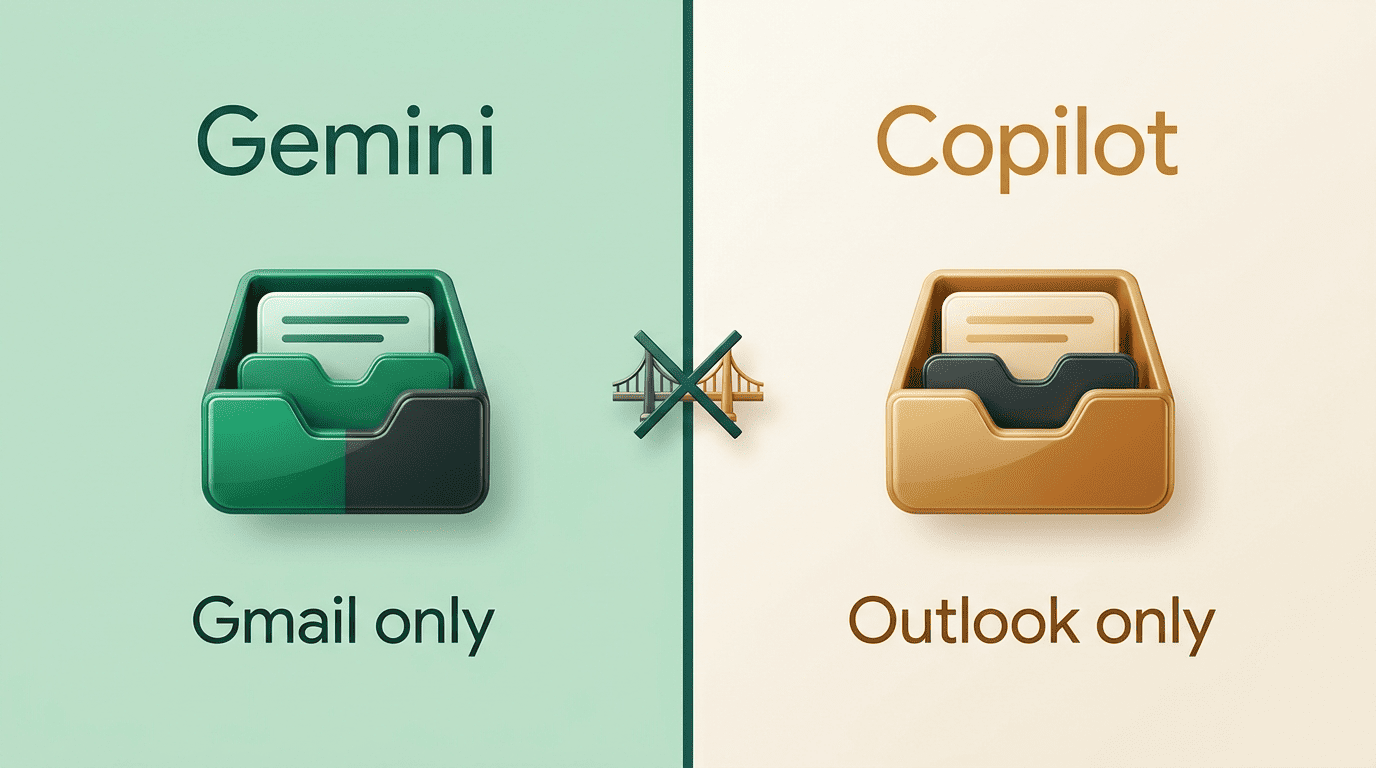
If you check a Gmail account and an Outlook account in the same workday — or if your company runs Gmail while a client or partner runs Outlook — neither built-in assistant follows you across. That gap is exactly where a standalone AI email writer online earns its keep: same drafting behavior, same tone, regardless of which inbox you’re staring at.
One Tool, Both Inboxes: What Cross-Platform Actually Means
Cross-platform support isn’t a marketing checkbox — it’s the reason a single subscription can replace two separate built-in tools. Providers like Fyxer, Superhuman, Missive, and Mailbutler are built to connect to Gmail and Outlook through the same account, often via a single sign-on flow to both Google and Microsoft, so triage rules, tone settings, and draft history stay consistent no matter which inbox generated the email.
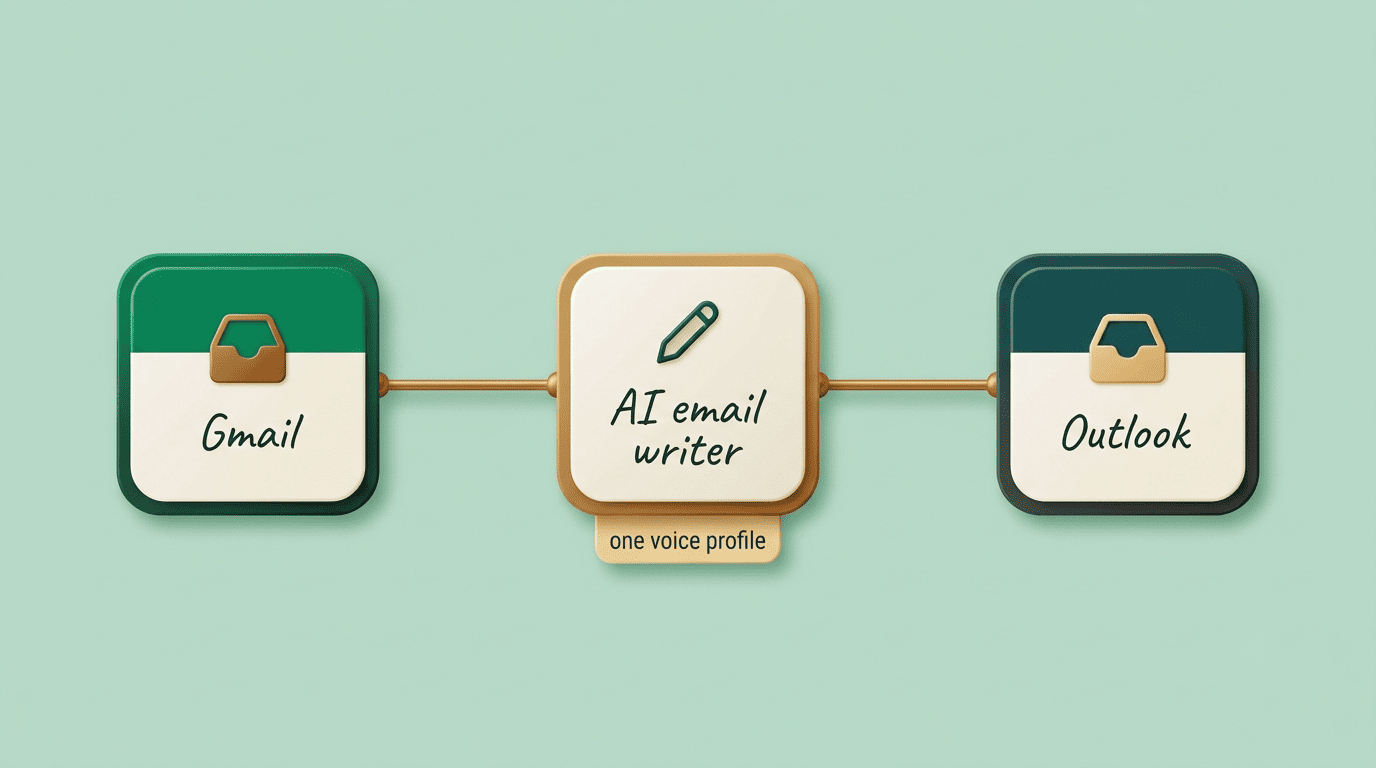
The practical upside shows up in speed, not just convenience. Vendors report meaningful time savings from drafting in a user’s own voice — Superhuman, for one, cites users saving 4+ hours a week — and that holds regardless of which inbox the reply is headed to. Running two separate one-inbox tools instead of one cross-platform writer means learning two interfaces, paying two subscriptions, and keeping two sets of tone preferences in sync — friction that disappears once triage and drafting live in a single connected tool.
| Setup | Built-in option | Cross-platform option |
|---|---|---|
| Gmail only | Gemini (Workspace add-on) | AI email writer via extension |
| Outlook only | Copilot (M365 subscription) | AI email writer via add-in |
| Gmail + Outlook | Two separate tools, no shared memory | One AI email writer, one voice profile |
Connecting Safely: OAuth, Permissions, and Your Data
Every legitimate AI email writer connects through OAuth rather than asking for your password directly. Google’s developer documentation lists the exact Gmail API OAuth scopes an app can request — from read-only access to full mailbox modification — and a well-built integration requests only what it needs to draft and triage, not blanket control. OAuth itself, as described by the OAuth 2.0 authorization framework, is designed around delegated, scoped access tokens rather than handing over your actual credentials, which is why revoking an app’s access doesn’t require changing your password.
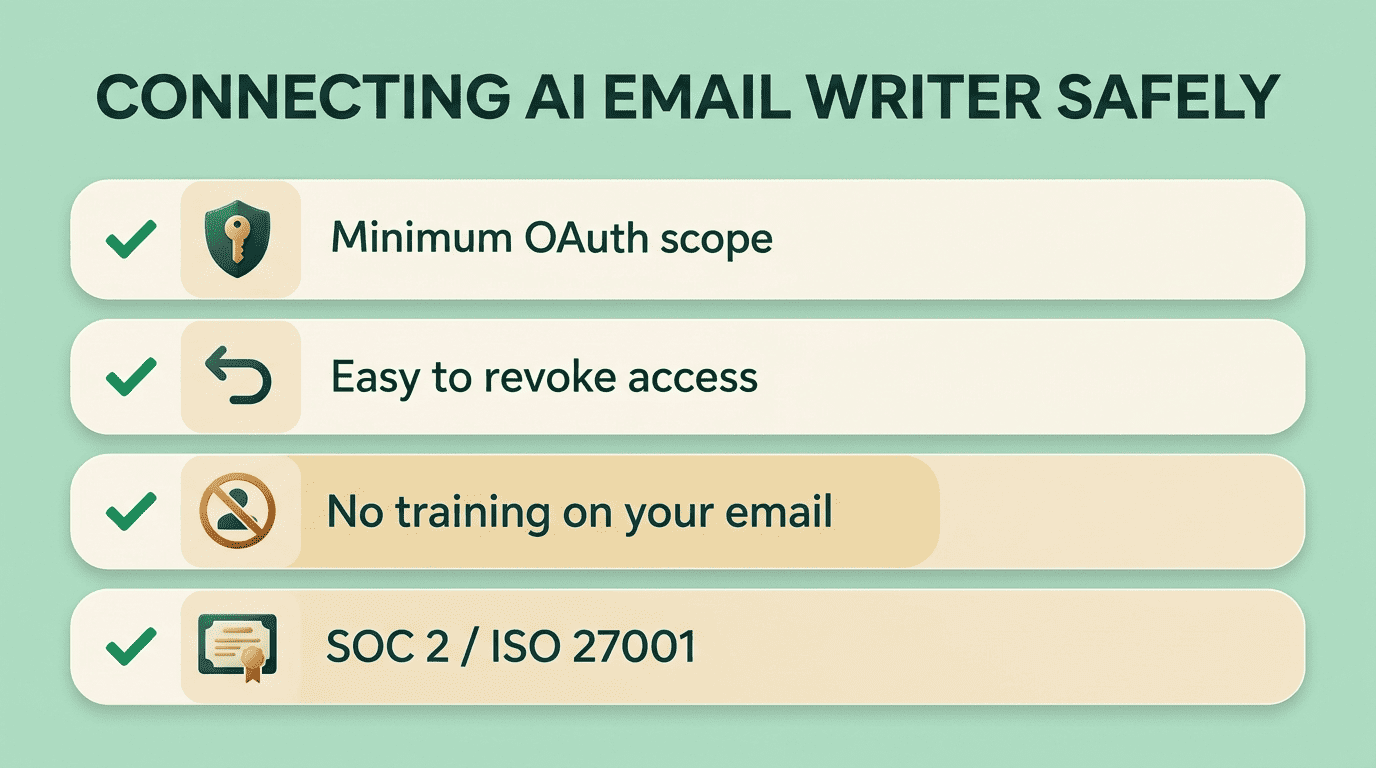
Security posture varies by vendor. Fyxer advertises ISO 27001 and GDPR compliance and states it doesn’t retain or train models on customer email content; Lindy points to SOC 2, HIPAA readiness, and AES-256 encryption at rest. Google also publishes guidance for administrators on controlling third-party app access to Workspace data, which is worth checking before connecting any inbox tied to a company domain.
OAuth 2.0 is the industry-standard protocol for authorization. OAuth 2.0 focuses on client developer simplicity while providing specific authorization flows for web applications, desktop applications, mobile phones, and living room devices.
OAuth.net, OAuth 2.0
What permissions to look for
A trustworthy setup asks for the minimum scope needed to read and draft — not full account control — and makes revoking access a couple of clicks inside your Google or Microsoft account settings, not a support ticket. Look for a clear answer on whether your emails are used to train the underlying model, since that’s the detail most privacy policies bury.
Before granting access, run through a short checklist:
- Does it request read/write access to a single mailbox, or organization-wide admin rights?
- Can you revoke the connection from your own Google or Microsoft account settings, without contacting support?
- Does the vendor state in writing whether your email content trains its models?
- Is there a named security certification (SOC 2, ISO 27001) rather than a vague «enterprise-grade security» claim?
Keep auto-send off for sensitive mail
Draft staging — where the AI writes a reply but a human approves it before it goes out — should be the default, not an opt-in buried in settings. For anything client-facing, legal, or financial, leaving auto-send off means every draft still gets a human read before it leaves your outbox.
Some tools do offer a fully autonomous send mode once they’ve learned your voice, but the vendors that publish their own usage data describe it as the exception rather than the default — most drafts still wait for a click.
What It Does Once It’s Connected
Once permissions are granted, the actual work happens inside the inbox you already have open — no separate app to check.
- Draft replies in your voice. The tool reads recent sent mail to match tone and phrasing, then produces a draft rather than a blank compose window.
- Sort incoming mail into triage buckets. Most tools split the inbox into three rough categories — needs a reply, FYI only, and noise — so you’re not scanning everything manually.
- Summarize long threads. A multi-message back-and-forth gets condensed into a few lines before you decide whether to reply at all.
- Adjust tone on demand. You can typically ask for a more formal, shorter, or warmer version of a draft before sending.
- Hold drafts for review. Nothing goes out until you approve it — auto-send is the exception, not the rule, across the tools that publish their defaults.
That workflow is the same whether the AI email writing tool is layered onto Gmail or Outlook, which is the entire point of choosing one that supports both.
Pricing: Built-In vs Standalone
Built-in tools are bundled into a broader subscription, while standalone AI email writers charge per seat for the writing and triage features specifically.
| Tool | Type | Approx. price |
|---|---|---|
| Gemini for Gmail | Built-in (Google Workspace) | From ~$7/user/month |
| Microsoft Copilot | Built-in (Microsoft 365 add-on) | ~$30/user/month |
| Mailbutler | Standalone, cross-platform | ~$11-15/month |
| MailMaestro | Standalone, cross-platform | ~$12-15/month |
| Fyxer | Standalone, cross-platform | ~$30-50/month |
| Superhuman | Standalone, cross-platform | ~$30-40/month |
The built-in options look cheaper on paper, but that price only covers one inbox.
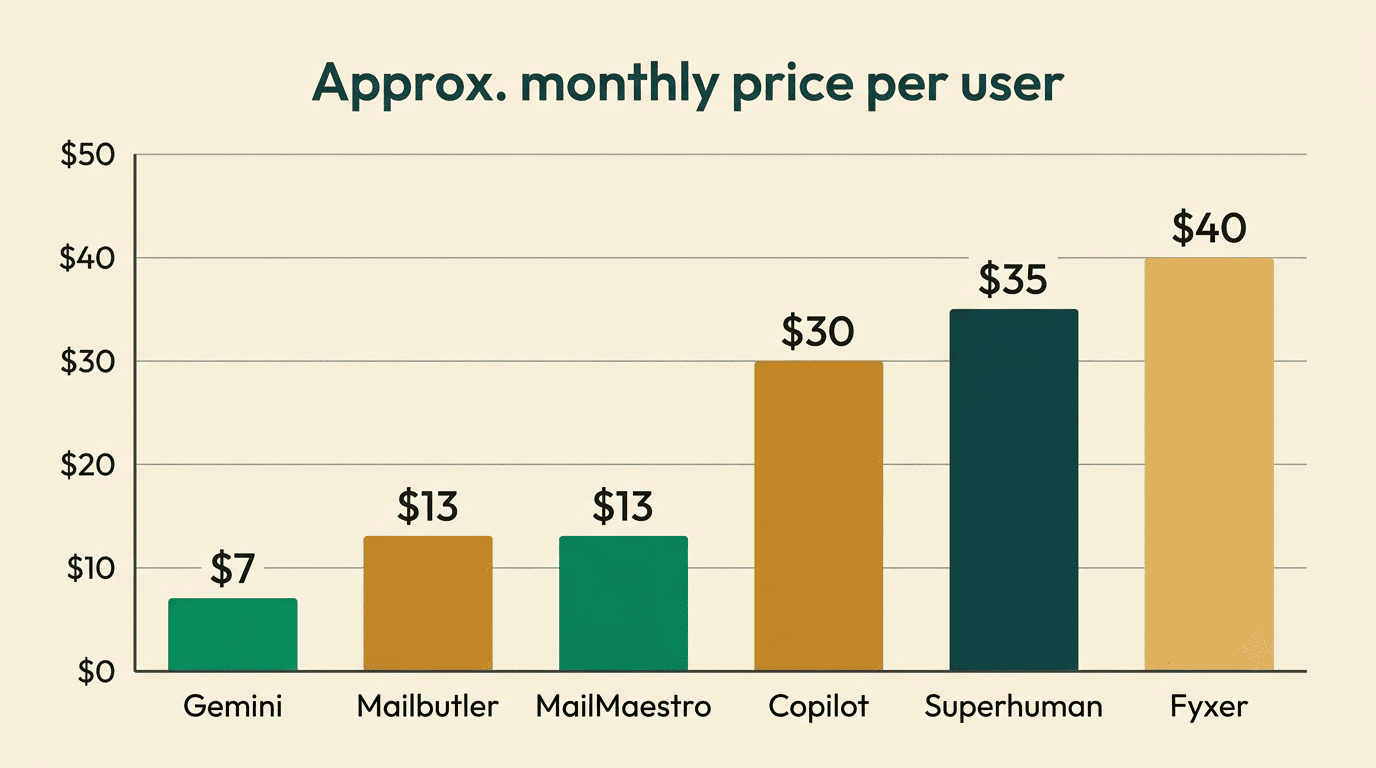
Anyone juggling Gmail and Outlook is comparing one standalone subscription against two separate built-in ones — and the math shifts once you count both.
How to Choose the Right One for Your Setup
Start with which inboxes you actually use day to day, not which one your company issued.
- Only Gmail: Gemini inside Workspace covers the basics, or a lightweight extension if you want more triage control.
- Only Outlook: Copilot works for composing if your mailbox sits on Exchange Online under an eligible Microsoft 365 Business or Enterprise plan; otherwise an add-in from Microsoft AppSource fills the gap.
- Both Gmail and Outlook: a cross-platform AI email writer is the only option that keeps tone, triage rules, and draft history in one place instead of splitting across two tools.
Beyond inbox coverage, check permission hygiene before connecting anything — minimum requested scopes, an easy revoke path, and auto-send off by default. Microsoft’s own Outlook add-ins overview documents how add-ins request access to mailbox data, which is a useful baseline for judging whether a given tool is asking for more than it needs. If a vendor can’t explain what it does with your email content in plain language, that’s a signal worth weighing before you connect a work inbox.
FAQ
Related guides: professional work emails and staying out of the spam folder.